
ShotLume
Screenshots, saved and copied.
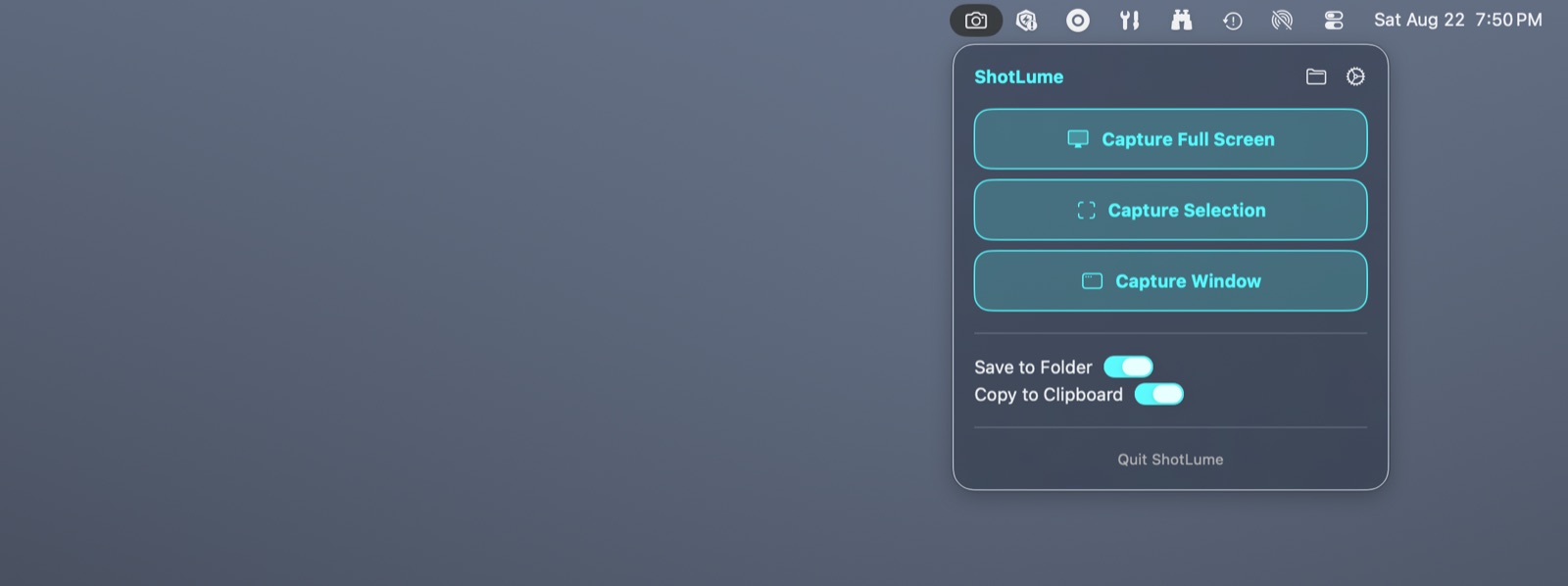
Saves each screenshot to your folder and copies it to the clipboard from one shortcut. Lives in the menu bar, captures at your display’s own resolution, and has an optional 1280×800 canvas for documentation.
Every capture lands in your chosen folder and on the clipboard from one keystroke. Both are on by default. Choose the folder once: iCloud Drive, your Desktop, or any folder on your Mac.
Whole screen, a dragged selection, or a single window. Capture every display at once or only the one the pointer is on. A selection dragged across two displays captures the whole selection.
Control-Option-Command-3, 4 and 5 are registered with macOS directly, so ShotLume never asks for Accessibility or Input Monitoring access, and they do not clash with macOS’s own Shift-Command shortcuts. One Screen Recording approval is still needed the first time you capture.
Every screenshot is a lossless PNG at your display’s own resolution, 2× on Retina and 1× on a 1× monitor, with the correct DPI stamped in so it pastes at true size. Nothing is resampled unless you turn on Tech Doc Formatting or drag a selection across displays of different resolutions.
Optional, and off by default. Centers each capture on a standard 1280×800 canvas, letterboxed and never stretched, so documentation and tutorials get the same size every time. Measured at exactly 1280×800 on a 2× display.
Lives in the menu bar, with no Dock icon and no window in the way. Shortcuts and Siri can take a full-screen, selection or window capture, and they report whether the capture was actually saved.
ShotLume has zero network configurations of its own: it is built without a network entitlement, so macOS itself will not let it open a connection. No crash logs, usage data, or file metadata are ever transmitted to ProfWorkBench, and there is no account. A black-box audit of the shipping build, run without access to its source, confirmed this from its entitlements, its binary’s symbols, per-process network counters and a packet capture. Your captures go only where you send them. Choose iCloud Drive, the default on a fresh install, and macOS syncs them between your own devices through your personal iCloud account; ProfWorkBench never sees them. Choose a folder on your Mac and they never leave it.
Every button and switch in ShotLume carries an explicit accessible name, so assistive technology can identify and address each control. A black-box audit of the shipping build, run without access to its source, read the interface back through the macOS accessibility API and found no unnamed control in the menu-bar panel, Settings, About or the User Guide. ShotLume honors the macOS Reduce Motion setting and adds its own Reduce Animations switch in Settings.
U.S. price. There are no in-app purchases. Requires macOS 26 or later on an Apple silicon Mac (M1 or later). Intel Macs are not supported.
Educational, military, and first-responder discounts apply; see Academic & Service Discounts.